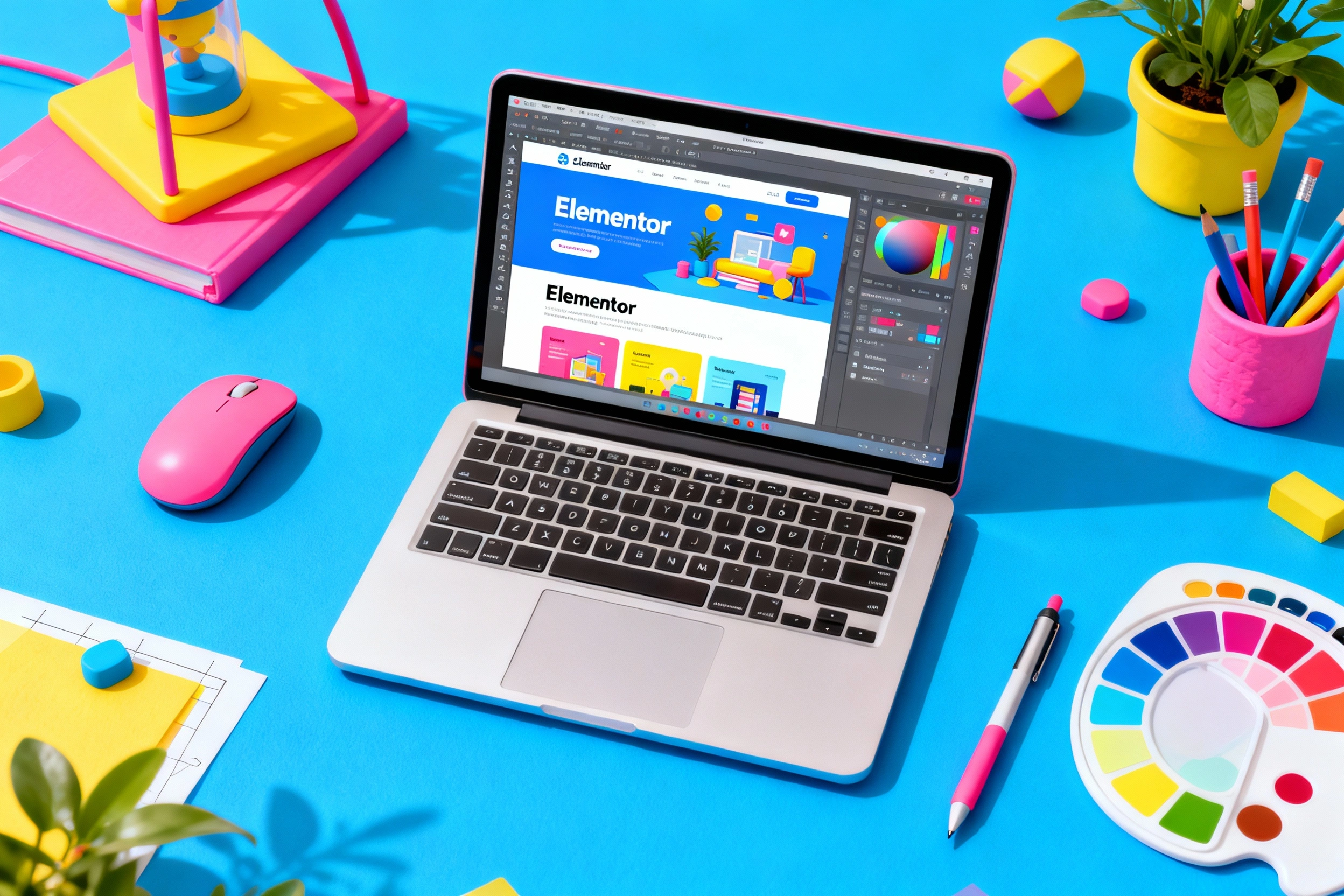
The Ultimate Beginner’s Guide to Building a Website with Elementor
Unlock the power of Elementor with this beginner’s guide to building professional websites effortlessly. Learn how to set up WordPress, choose and customize templates, and use intuitive of Elementor drag-and-drop editor to create stunning, mobile-friendly pages—no coding required. With Elementor’s powerful widgets, visual editing tools, and AI features, anyone can confidently design a unique website from start to finish.
Building a website can feel intimidating—especially if you’re new to the world of web design. But with Elementor, creating a stunning, professional-looking website becomes incredibly simple. Whether you’re building a blog, portfolio, agency website, or online store, Elementor gives you complete control without needing to write a single line of code.
Let’s walk through the ultimate beginner-friendly guide to building a website using Elementor.
What Is Elementor?
Elementor is a drag-and-drop website builder for WordPress that allows you to design visually—meaning you can see changes in real-time. It replaces the classic WordPress editor with a more intuitive and flexible interface.
Free vs Pro Version
Elementor Free → Great for basic websites
Elementor Pro → Unlocks advanced widgets, theme builder, popups, forms, templates, and more
If you’re just starting out, the free version is enough. As your website needs grow, upgrading becomes beneficial.
Why Choose Elementor for Building Your Website?
Elementor stands out because it’s:
Beginner-friendly
Highly customizable
Fast and lightweight
Used by millions worldwide
Its drag-and-drop editor makes it possible to create stunning layouts with zero coding.
What You Need Before Using Elementor
Getting Started:
Before building your website, make sure you have:
A domain name (e.g., yoursite.com)
A hosting plan (e.g., Bluehost, Hostinger, SiteGround)
WordPress installed
Elementor plugin installed
To install Elementor:
Go to Plugins → Add New → Search “Elementor” → Install → Activate.
Essential Elementor Widgets Every Beginner Should Know
Heading Widget
Used for titles and subheadings.
Text Editor
For paragraphs and descriptions.
Button
Add CTAs (Call-To-Actions) like “Contact Us” or “Buy Now”.
Image & Video
Visual elements that make your website attractive. These widgets form the foundation of a professional site.
Designing a Homepage with Elementor (Step-by-Step)
Let’s create a simple yet stunning homepage.
Hero Section
Add a full-width section with:
Background image
Big headline
Subtitle
CTA button
Services Section
Use icons and headings to list what your business offers.
Testimonials Section
Add social proof using testimonial widgets.
Call-to-Action Section
Create a bold section encouraging users to take action:
Contact you
Buy your product
Sign up for your newsletter
Creating a Responsive Website with Elementor
Your website must look great on all devices.
Tips:
Adjust fonts for mobile
Reduce padding on small screens
Hide unnecessary elements
Use the responsive mode frequently
Elementor makes responsive editing simple and intuitive.
Elementor Templates and Theme Builder
Templates are a lifesaver for beginners.
Using Templates
Go to Templates → Kits Library and import an entire ready-made website.
Theme Builder (Pro)
Allows you to design:
Custom header
Custom footer
Blog archive pages
Single post templates
It gives you complete creative freedom.
Adding Forms, Popups, and Extra Features
Theme Builder (Pro)
Elementor Pro unlocks even more power.
Form Widget
Create contact forms, lead forms, surveys, or newsletter signups.
Popups
Design beautiful popups for:
Email capture
Discounts
Announcements
Integrations
Integrate with:
Mailchimp
HubSpot
Zapier
CRM tools
Best Practices to Make Your Elementor Website Look Professional
A good design is more than pretty colors.
Consistency Is Key
Stick to a simple color palette (2–3 colors).
Typography Rules
Use only 2 fonts:
One for headings
One for paragraphs
Spacing & White Space
Leave breathing room between elements.
These simple rules instantly elevate your website’s design.
How to Improve Speed and Performance in Elementor
A slow site can ruin user experience.
Tips to Speed Up Your Elementor Website:
Compress images
Use a lightweight theme like Astra
Enable caching plugins
Minimize widget usage
Use a fast hosting provider
Fast websites get better conversions and SEO rankings.
Publishing and Maintaining Your Elementor Website
Once your website is ready:
Hit Publish
Test your pages
Update plugins regularly
Take backups
Install security plugins (Wordfence, Sucuri)
Maintenance ensures your website stays fast, secure, and functional.
Conclusion
Elementor is one of the easiest and most powerful website builders for beginners. With its intuitive interface, customizable widgets, and endless design freedom, anyone can build a professional website—no coding needed. The options are virtually limitless if you grasp the fundamentals.